Start a Conversations - Choosing Groups
The first step when starting a new conversation in eKool is selecting the right group.
You can choose between School groups and Groups of your choice:
- School groups: Automatically created based on user roles (e.g. students, parents, teachers, class groups).
- Groups of your choice: Custom groups you create by selecting individual users or mixed roles.
Web view
Mobile view
.jpg)
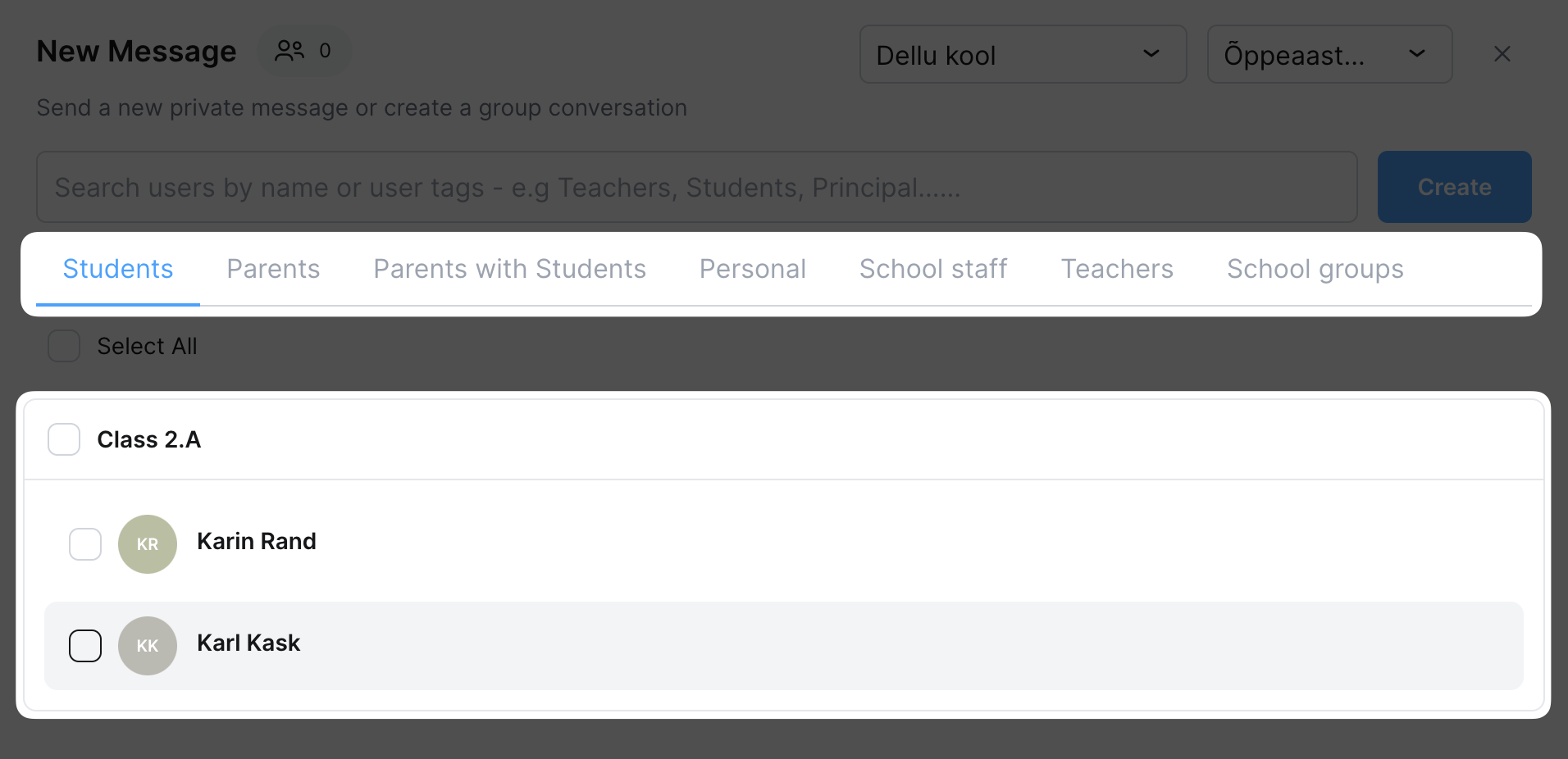
To start a conversation - group choice
- Go to Messages
- Click New message or Announcement
- Choose one or more groups under the tabs:
- Students
- Parents
- Parents with students
- Personal
- School staff
- Teachers
-
School groups
- role specific group
- Select recipients (individual people or groups)
- Click Create
Attention!
Only the person who started the conversation (the chat administrator) can manage the group. If someone leaves the school, they are automatically removed from school groups and can no longer see the conversation.
How school groups work
- Created and updated automatically based on the school's structure.
- Includes role groups, class groups, and staff groups.
- Users added or removed from these groups will automatically reflect in the conversation membership.
Good to know!
You cannot combine school groups and choice groups in a single message.
Related articles
-
Creating a new conversation
This article explains how to start a new chat or announcement in eKool, choose recipients, and create the conversation step by step.
-
Managing Conversations and Participants
This article explains how to manage an eKool conversation—edit its settings, handle participants, and assign admin roles.
-
Sending and Managing Messages
This article explains how to send, edit, delete, and manage messages in eKool chats, including how to track message views and send important notices.
Thank you for your feedback!
Thank you about your feedback/question, we will answer to you asap via your e-mail.
-
- Creating a new conversation
- Managing Conversations and Participants
- Sending and Managing Messages
- Polls in eKool Messaging
- Messaging User settings
- Who can you start a new conversation with (according to your role in eKool)
- Start a Conversations - Choosing Groups
- Understanding Group and User Indicators in eKool Messaging
- Participating in a conversation
- Formatting Messages in eKool
- Conversation access to school admin - sharing link
-
- New location for Consent Management and School Cards
- Recovering eKool's account password
- eKool API
- Resolving Login Issues (Mobile-ID, Smart-ID, ID Card)
- How to reset your eKool password
- Getting an overview of grades after leaving school
- Changing Your Email (username): “Email is Already in Use”
- I can't see my child's/my own study information in eKool?
- Incorrectly sent absence notice
- How to Recover Your Account When You Can't Access Your Email
- Removing a parent's access to their child's educational information
- Troubleshooting Mobile App Crashes
- The school cannot be found in the eKool school list
- What should I do if someone else has logged into eKool account and made entries?
- Can't Find Your 2FA Code in Email?
- How to add a username to your Opiq account connected to eKool?
- Login Error: “reCAPTCHA verification failed”
- Troubleshooting Chrome Display Issues in eKool Messaging